Dashboard
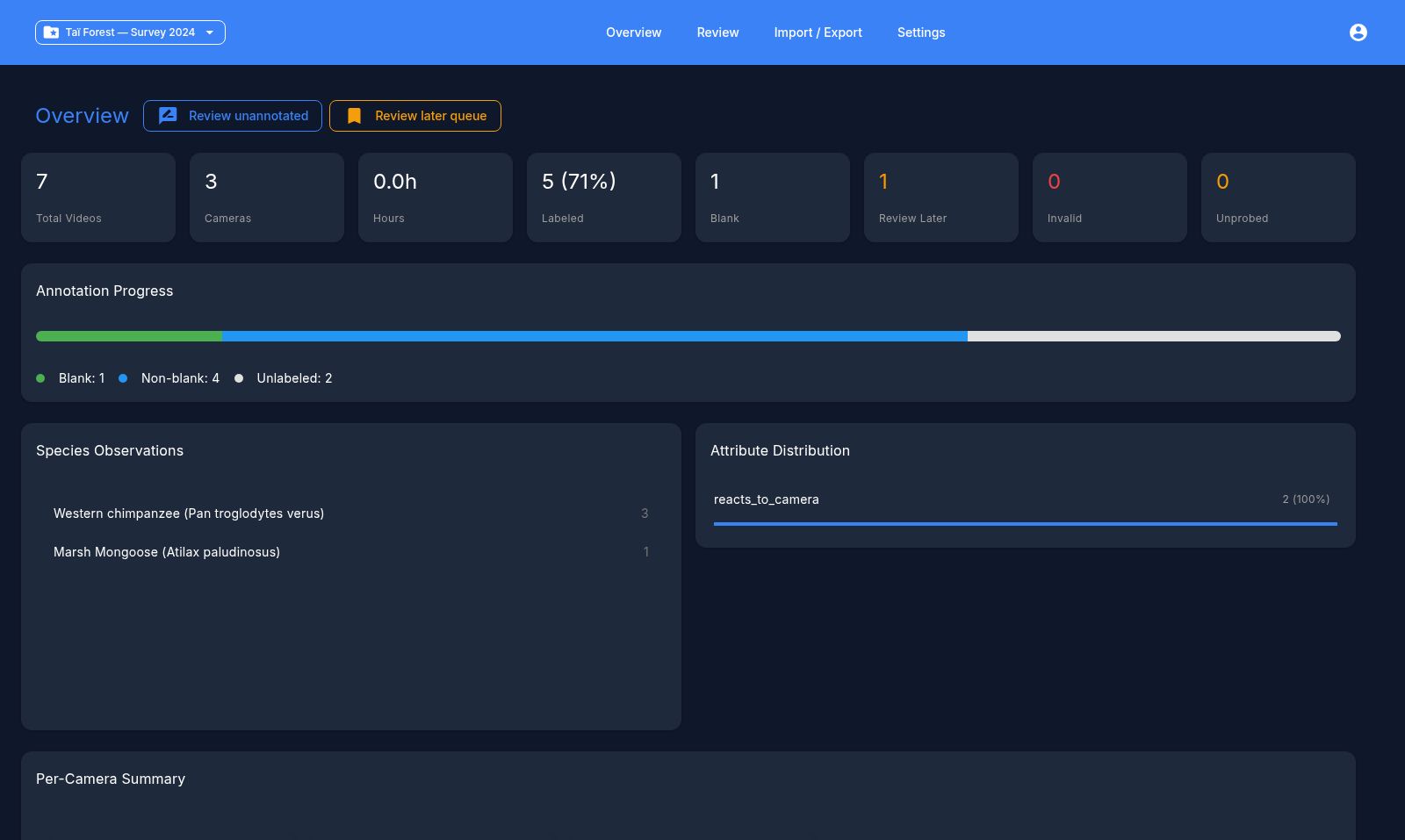
The Dashboard (also called the Overview) is the app's landing page — opening the app, or clicking the home/Overview button, takes you here. It summarizes the state of the active project and is the quickest way to jump into the right videos.
Note
The dashboard only appears once a project has videos synced. Before that, it prompts you to go to Settings and sync a video folder. See Getting started.
Quick-review buttons
At the top right are shortcuts that open the review screen with filters already applied:
- Review unannotated — jumps to videos that still need annotating.
- Review later — only shown when you have videos bookmarked with Review later; opens just those.
Stat cards
A row of summary tiles for the active project:
| Card | Meaning |
|---|---|
| Total videos | Videos registered in the project |
| Cameras | Distinct camera IDs |
| Hours | Total footage duration |
| Labeled | Annotated videos, with percentage |
| Blank | Videos marked blank |
| Review later | Videos bookmarked for a second pass |
| Invalid | Videos that couldn't be read/probed correctly |
| Unprobed | Videos not yet analyzed for metadata/duration |
Missing videos
If the project references videos that are no longer present on disk, an expandable warning banner lists their paths. You can clean these up from Settings → Video directory (see Settings).
Annotation progress
A stacked bar breaks the whole project into blank, not blank, and unlabeled videos, with a legend and counts — a one-glance view of how much work is left.
Species and behaviors
Two side-by-side panels:
- Species observations — every species recorded so far, with observation counts. Click a species to open the review screen filtered to it.
- Behavior distribution — behaviors recorded across the project, with counts and a percentage bar. Click a behavior to filter the review screen to it.
Camera summary
A horizontally scrollable strip of camera cards, each showing a sample thumbnail, the camera ID, a labeled-progress bar, and total videos/hours. Click a card to review that camera's videos.
Assignment summary
When videos are assigned to annotators (see Settings → Distribution), this panel lists each annotator with their labeled percentage, video/camera counts, hours, and a blank/not-blank/unlabeled progress bar. Click a row to review that annotator's assigned videos.
Location map
If any videos carry GPS coordinates, an interactive map plots each camera location with a marker showing how many videos it holds.
Next: Importing model results