Settings
The Settings page collects everything that configures the app and the active project. The most-used controls are at the top; less-frequent and destructive operations live under Advanced Settings.
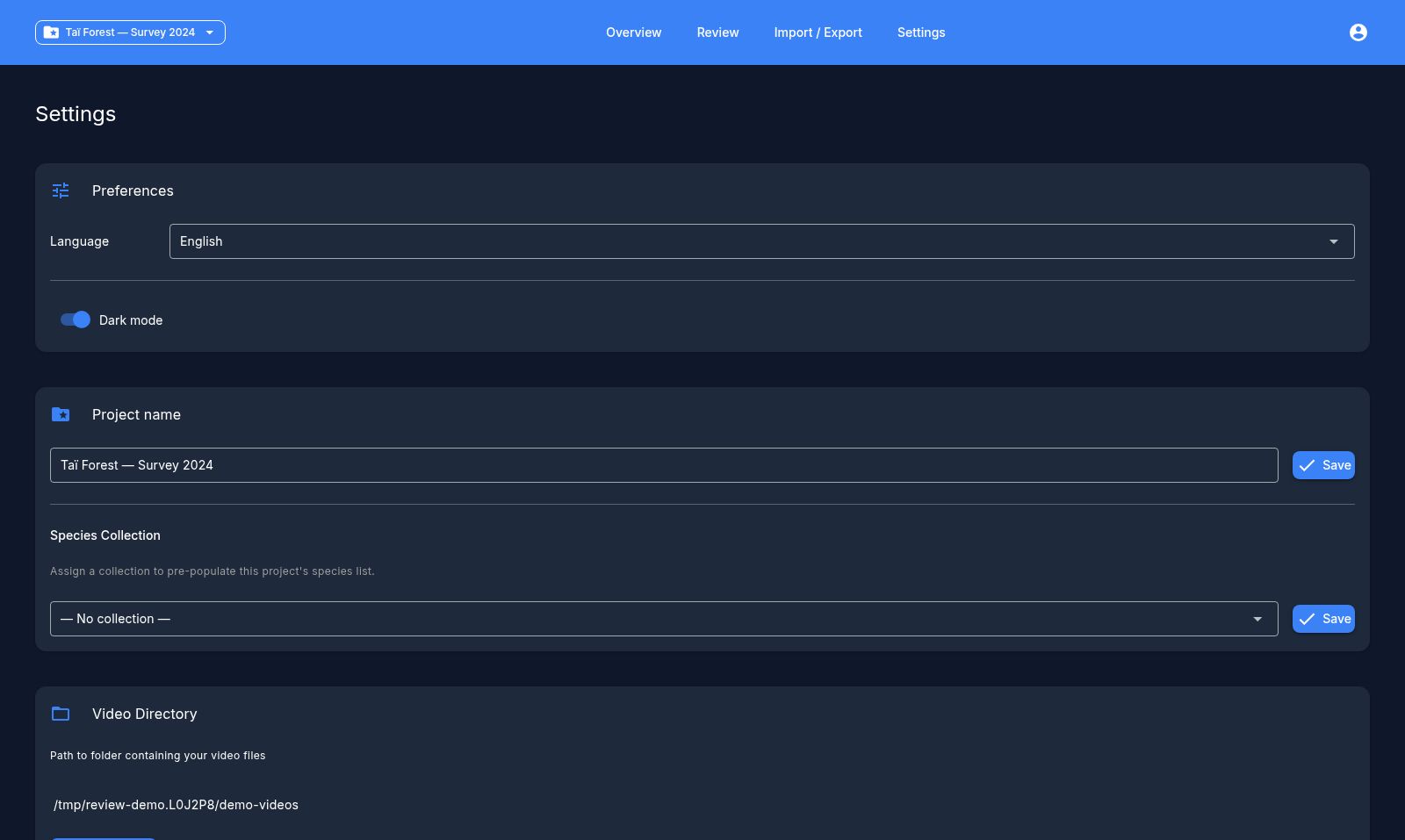
Preferences
- Language — switch the interface between English and French (reloads the app).
- Dark mode — toggle the light/dark theme.
Project
Shown when a project is active:
- Project name — rename the active project.
- Collection — group the project under a named collection, or leave it uncategorized.
Video directory
Shows the folder on disk that the active project scans for videos.
- Sync videos — re-scan the folder. New videos are registered; videos no longer on disk are flagged. A progress dialog reports how many were scanned, added, and removed.
- Delete missing videos — if videos in the database no longer exist on disk, a count appears here with a button to remove those records (confirmation required).
Advanced Settings
An expandable section grouping the deeper configuration:
Project species
Enable the species relevant to your project from the global catalog, or add custom ones. Only enabled species appear in the annotation controls. This is the main thing to set up before reviewing — see Getting started.
Tags
Manage the tags that can be applied to videos. Built-in tags (such as fire, nice_shot, broken_metadata) are always available; you can add custom tags here.
Blank detection
Three confidence-threshold sliders (0.0–1.0) that control how AI predictions are displayed:
- Blank threshold — how confident the model must be to treat a video as blank.
- Species threshold — minimum probability for a species prediction to be shown.
- Object-detection threshold — minimum probability for an object detection to be shown.
Click Save to apply.
Distribution
Split a project's videos across multiple annotators so each person reviews their own share.
- Add the annotator names to distribute to.
- Assign cameras to annotators manually, or use Auto-distribute to spread cameras evenly.
- Apply to write the assignments; Reset clears them.
A summary table shows each annotator's cameras, videos, and hours. The same panel offers:
- Bundle export — download a per-annotator
.zipproject bundle to hand off. - Video ZIP export — package each annotator's assigned video files into ZIPs in an output folder you choose.
Assignments show up on the Dashboard and as an annotator filter on the review screen.
Users / annotators
Lists everyone who has logged in as an annotator, with their annotation counts. You can delete an annotator who has no annotations — annotators with existing annotations (and your own current name) can't be deleted.
Database management
- Backup — download a
.dbsnapshot of the whole database. - Restore — replace the current database from a previous backup (a safety backup is taken first).
- Delete model annotations — remove all imported AI predictions while keeping your manual annotations.
- Reset database — wipe everything and start fresh (a backup is taken first). Destructive — confirmation required.
Diagnostics
At the bottom of the page:
- Download log — save
app.logto send when reporting a problem. - Check for updates — compare your version against the latest release and, if newer, offer a download link (a backup is taken before updating).